
AFS Journals
Introduction to AFS Journals
To process proforma journals on Dynamic AFS to see the effects on the Trail balance and Annual Financial Statements.
For example, let’s say that it was found that during 2022 (current year) an expenditure amount for Basic Salaries account number 4740>050, of R20 000 was incorrectly posted to Depreciation-Computer Equipment account 4300>010.
There are two methods for writing journals for the MCS edition:
Via the Journal Functionality on the Portal, where the journal adjusts both the Trial Balance data (for automation into the Current_Yr_TB section of the AFS template) as well as the Vulindlela data (for automation into the Appropriation Statement of the AFS template). To effect this, you will need to have a specific BAS account (for the Trial Balance changes) and applicable Programme and Subprogramme details (for the Vulindlela changes, pulling through to the appropriation statement). Controls are in place to ensure that the journal balances.
Via the Journal Column on the AFS template directly (Column D: Journal) on the Current_Yr_TB or Prior_Yr_TB sections. Please note that this is standard basis allowed per the AFS template, where the classifications in the AFS (column H) and Classification Notes (column L) needs to relinked as applicable. Given this is an inclusion on the AFS template, users need to ensure that the contra values for the journals balance.
Steps to Access Proforma journals on the Portal:
Access Dynamic AFS via www.DynamicAFS.com and log in with authorized credentials. Confirm Dashboard landing page and Dynamic AFS Menu on left.
Click on “AFS-Journal” menu item, and confirm sub-menu items of:
View Journals Posted
Add
Export
Processing an AFS journal
Click on “Add” sub-menu item.
The “Add AFS Journal” processing page will open.
Enter relevant detail in the box marked “Description”.
Click on the green box with the plus sign for the input page to open
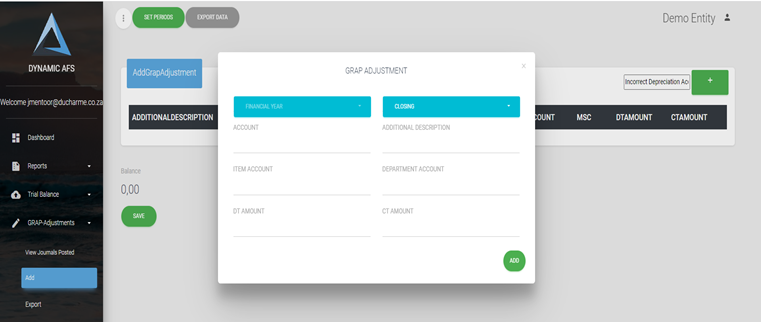
Select the financial year in which the adjustment must be made/journal must be processed by clicking on the blue banner marked “FINANCIAL YEAR” and selecting the relevant financial year from the drop-down menu. For our example, select 2022 for the current year
Enter the account number which need to be debited in the space marked “ACCOUNT” In our example it will be number 4740>050 to allocate the cost Basic Salaries.
The other information will appear on the menu.
Enter the amount of R20 000 in the space marked “DT AMOUNT”
Then press the green button marked ADD to add the entry to the journal
10. On the next input screen enter the account number which need to be credited in the space marked “ACCOUNT”
11. In our example this will be account number 4300>010 which relates to Depreciation.
12. Select the applicable ‘Programme’ and ‘Subprogramme’ to where the transactions will be posted on the Vulindlela data for eventual population into the Appropriation Statement.
13. Then enter the amount of R20 000 as a negative amount (either with a minus in the front or in brackets) in the space marked “CT AMOUNT
14. Confirm that the journal balance. After all the legs of the journal were entered the balance at the bottom should come to 0 (zero)
15. Click on the green button marked “SAVE” to save the journal and update the journal to the online TB.
16. To process the updated online TB to the AFS the following process need to be followed:
17. Return to the Dashboard landing page and Dynamic AFS Menu to the left
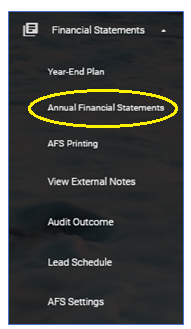
18. Click on “Financial Statements” menu item.
19. Click on “Annual Financial Statement” sub-menu item. Confirm that the Annual Financial Statements opens in a new tab, with the dashboard and Dynamic AFS platform still available in the original tab, to the left at the top of the screen.
20. To update the AFS with the processed journal, select the “Ducharme Menu” at the top and on the drop-down menu Select “Refresh Balance Values”

A pop-up will come up and after a while a message will appear in green confirming that the AFS had been successfully updated. Close the pop-up.
Editing AFS Journals posted
Afterwards it was discovered that the amount incorrectly allocated was actually R30 000 and not R20 000. We have therefore to edit the journal.
To do this go back to the Dashboard landing page and Dynamic AFS Menu on left
Click on “AFS-Journals” menu item, and select “View Journals Posted”
Find the previous journal posted from the listing and select to look at the journal by clicking the “eye” next to the journal. All the legs of the journal will be displayed. Next to each leg of the journal an eye is displayed as well as a dustbin. We want to change the amount which was journalized so we need to edit the existing rows
Select the eye on the first row. The white input screen will come up. Change the amount to be R30 000 and not R20 000 and press the Add button to update the change made.
Do the same for the other leg. Make sure the journal balances and press the Save button. Follow the procedure in note 16 to 19
Please note that Journals should be posted on the financial system and not on Dynamic AFS and then uploaded with the TB on Dynamic AFS. Journals on Dynamic AFS needs to be deleted by clicking on the dustbin next to the journal after it was processed on the financial systems and new TB’s uploaded to the online AFS otherwise it will be duplicated and cause certain items not to balance.

Export of Journals
Journals can be exported and downloaded into excel by:
Return to the Dashboard landing page and Dynamic AFS Menu to the left
Select AFS-Journals Adjustments
Select Export from the sub-menu.
Offsetting considerations
Departments need to consider trial balance accounts where the account or transactions inside the account is not reflective of the value classification required on the AFS itself.
Examples include:
Debtors with Credit balances
Cash & Cash equivalents which is under assets, but reflects a loan / overdraft.
Given that offsetting will not correctly reflect the classification position, entities will need to consider how to split the applicable values as well as include the correct value attribution in the AFS, be it through:
pro-forma AFS journals above via Dynamic AFS (outside BAS); or
inside BAS (e.g. Month 13 after year-end) will will allow full transactions details to be updated to both BAS and Vulindlela for correct programme levels in the appropriation statement
Please note that the NT AFS template does not always make provision for the classifications in the AFS note template where ‘debit classes contain credit values' / 'credit classes contain debit values’ (e.g. line item in the notes, e.g. ‘other prepayment’ sub-line), nor an active BAS account exist for the journal to be posted against (to which the Department may need to engage with NT for the BAS Accounts activation).